
The Nikon Z50 II is our first choice if you want photos on your phone without selecting every shot. SnapBridge can send small copies automatically, while a separate download lets you retrieve original files when you need them. You also get a viewfinder and interchangeable lenses, so the camera has room to grow beyond snapshots.
The best digital cameras with Wi-Fi do different jobs. Canon offers an approachable first camera, Sony gives you more control over which originals and video proxies you send, and Fujifilm suits photographers who want finished JPEGs from the camera. Panasonic puts phone video editing first. OM SYSTEM provides a compact option for wet, rough trips. All six can use a phone for remote live-view shooting, but their transfer rules differ.
Our Picks at a Glance
All 6 Cameras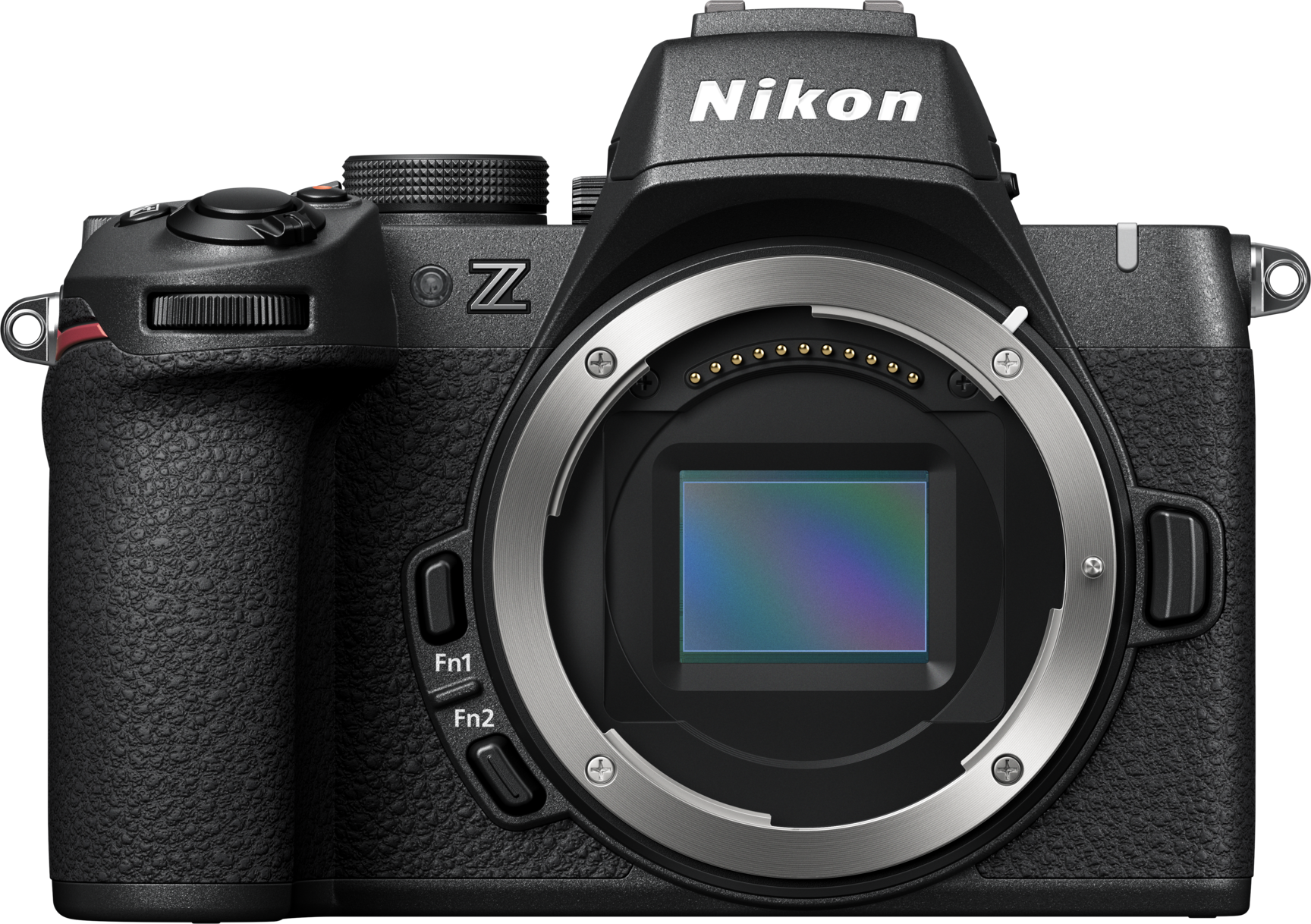
Small automatic copies for the phone, with original files available separately.
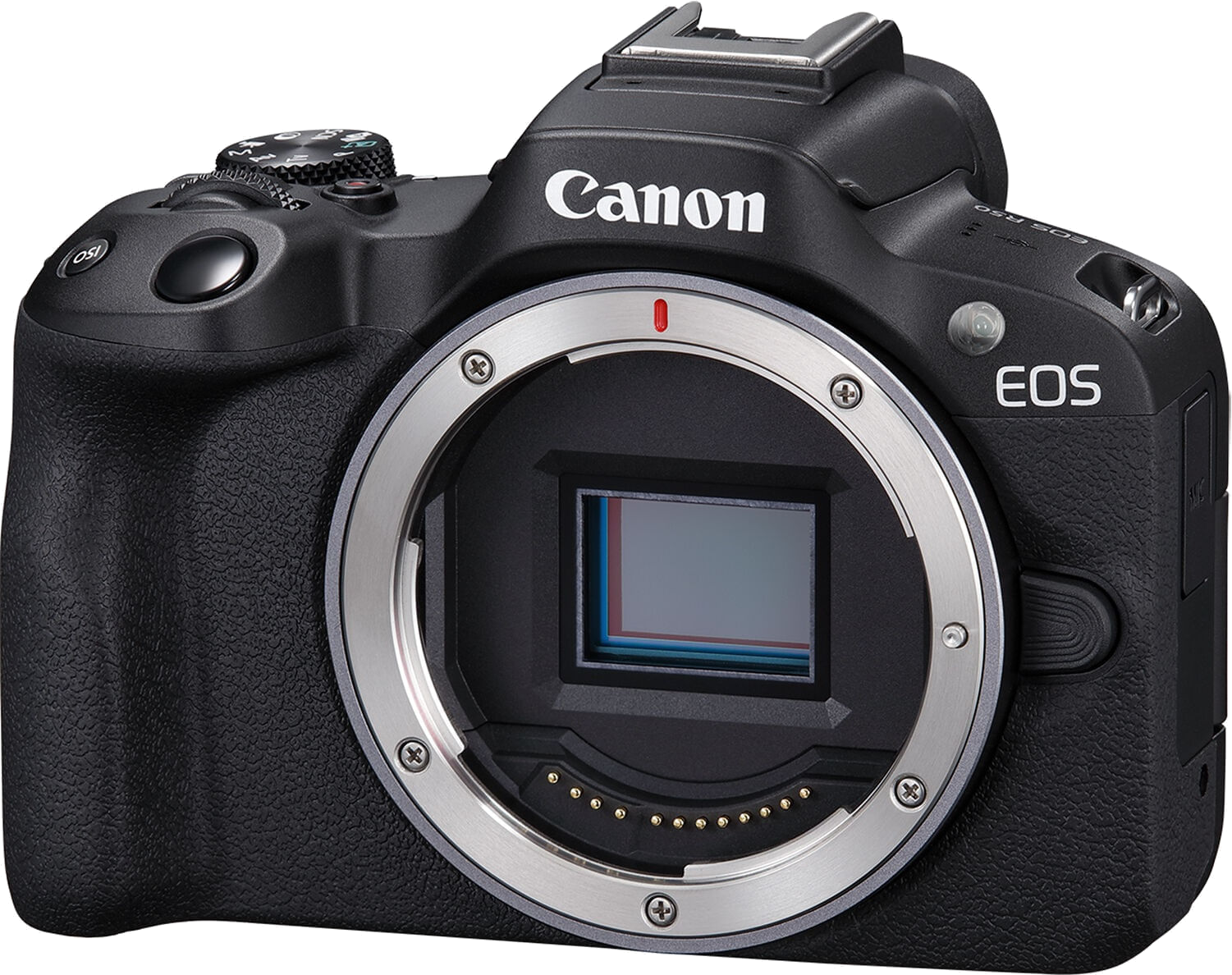
A small interchangeable-lens camera with phone browsing and remote live view.
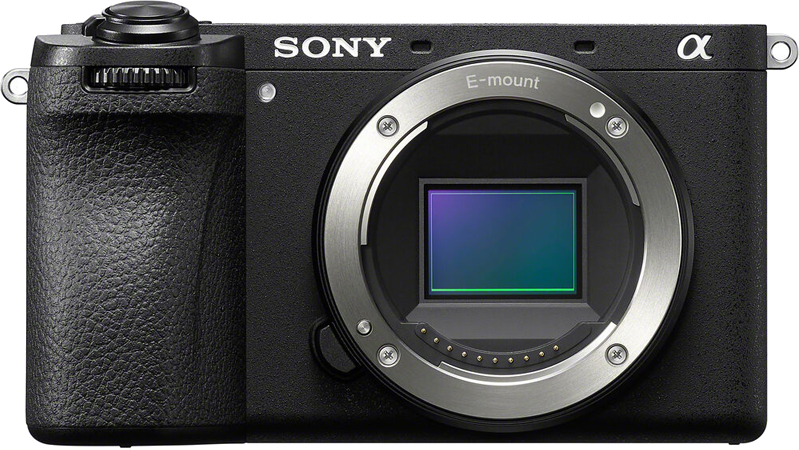
Choose originals, small stills, or video proxies to suit the edit you plan.
The Best Digital Cameras with Wi-Fi
Choose the files you want on your phone before choosing the camera. Small automatic copies suit quick sharing; RAW files preserve more editing options; video needs a compatible format as well as a wireless connection. These picks cover those needs without making a professional camera body the price of entry.
- Automatic 2 MP or 8 MP sharing copies
- Selected NEF RAW downloads
- Live-view remote shooting
- Viewfinder and interchangeable lenses
- Small body with a viewfinder
- Screen can face forward
- Auto send while connected by Wi-Fi
- Remote live-view framing
- Original or 2 MP JPEG transfers
- RAW-only or RAW-plus-JPEG choices
- Original or proxy video transfers
- Remote save to phone, camera, or both
- Film Simulation looks in the camera
- Automatic image transfer orders
- Transfers while off when enabled
- In-body image stabilization
- Automatic MP4 Lite video transfer
- Photo and video editing in LUMIX Lab
- Downloadable in-camera LUT looks
- Full-frame sensor
- Waterproof body for wet trips
- Built-in zoom, no separate lens needed
- Manual RAW photo imports
- Live view or separate remote shutter
The Best Wi-Fi Cameras in Detail
An automatic transfer can save effort without replacing a full-quality download. The Nikon makes that distinction especially clear. The Canon and Fujifilm offer other ways to send photos as you shoot, while the Sony and Panasonic provide more specific choices for video. The reviews below explain where each approach helps and what you give up.
Nikon Z50 II
- Phone App
- SnapBridge
- Automatic Copy
- 2 MP / 8 MP photos
- RAW Transfer
- Selected RAW downloads
- Sensor
- APS-C
Strengths
- Automatic 2 MP or 8 MP sharing copies
- Selected NEF RAW downloads
- Live-view remote shooting
- Viewfinder and interchangeable lenses
Trade-Offs
- Automatic copies do not back up RAW files
- Background downloads can pause on iOS
Choose the Nikon Z50 II for family days and travel when your main aim is to have shareable photos waiting on your phone. Its SnapBridge pairing supports automatic JPEG and HEIF copies. You can choose a smaller 2 MP copy or an 8 MP copy, rather than filling the phone with every full-resolution shot.
That is also its main limit: automatic copies are not automatic RAW backups. Use the app's selected-image download for originals, including supported NEF RAW files. Video needs a separate download too, and SnapBridge will not download a movie larger than 4 GB. Keep the camera card as your original-file store.
For a group photo, SnapBridge provides a live view and remote shutter control. Bluetooth handles pairing; the app switches to Wi-Fi for functions that need it. Nikon also supports a connection through an existing Wi-Fi network, although a direct camera-to-phone connection works away from a router. On an iPhone, automatic downloading can stop when iOS suspends the app in the background.
The Canon EOS R50 is a useful alternative for a smaller first camera. We favor the Nikon for routine sharing because its reduced-size automatic copies separate everyday sharing from deliberate original-file downloads.
Canon EOS R50
- Phone App
- Camera Connect
- Automatic Copy
- Photos while connected
- RAW Transfer
- iOS RAW; Android JPEG
- Sensor
- APS-C
Strengths
- Small body with a viewfinder
- Screen can face forward
- Auto send while connected by Wi-Fi
- Remote live-view framing
Trade-Offs
- Cannot shoot during image transfer
- Android app converts RAW files to JPEG
The Canon EOS R50 makes sense if you are moving beyond a phone and want a small camera with a viewfinder, a screen that faces forward, and room to change lenses. Its APS-C sensor gives it a different purpose from a tough pocket camera: you can build a system for portraits, family photos, and travel.
Camera Connect lets you browse pictures and shoot with a live view on the phone. The R50 can also send photos automatically while its Wi-Fi connection to the phone is active. There is a practical interruption, though: the camera cannot shoot during an image transfer. For a busy sequence, taking the pictures first and importing favorites afterward is the better approach.
Your phone changes the RAW answer. On iPhone and iPad, the app's RAW-saving preference lets you import the original; leaving it off gives you a JPEG copy. Canon's Android app does not import original RAW files and converts them to JPEG. That makes the R50 a weaker choice for an Android RAW-editing workflow. Canon ID sign-in is also required to use Camera Connect, so set up the account before relying on it away from home.
Choose the Nikon Z50 II if the small-copy automatic workflow is your priority. Choose the R50 if you want an approachable stills camera and are happy to manage transfers between shooting sessions. Remember to include a lens when comparing either body with the fixed-lens OM SYSTEM below.
Sony a6700
- Phone App
- Creators’ App
- Automatic Copy
- Select files to import
- RAW Transfer
- RAW only or RAW + JPEG
- Sensor
- APS-C
Strengths
- Original or 2 MP JPEG transfers
- RAW-only or RAW-plus-JPEG choices
- Original or proxy video transfers
- Remote save to phone, camera, or both
Trade-Offs
- More transfer settings to manage
- A proxy does not replace the original file
The Sony a6700 is the strongest choice here for photographers who want to decide exactly what reaches the phone. Creators' App can receive original or 2 MP JPEGs, RAW files, or both parts of a RAW-plus-JPEG capture. HEIF import is available on supported iPhones and iPads; Sony lists JPEG and RAW for Android. You can send a quick preview now and keep an editable original for a more considered edit.
Video has a similarly useful choice: send the original, a smaller proxy, or both when those files have been recorded. A proxy is a lighter copy for viewing or editing. It does not replace the original. This matters on iPhones: the app cannot import some originals, including XAVC S 4:2:2 10-bit and XAVC S-I movies. Check Sony's supported files and phones before choosing your recording format.
Remote shooting gives you control over where photos are saved: camera, phone, or both, with file options tied to the camera's recording settings. That is useful for a tabletop setup where you want to check a picture on the phone while keeping the camera card as a second destination. Its in-body stabilization also helps when you return to shooting handheld.
The trade-off is a longer set of choices to understand. This is not the first pick for someone who only wants small automatic holiday copies. The Nikon Z50 II is a more direct fit for that task. Choose the Sony when original-file selection, remote saving, and proxy video are the reasons you want Wi-Fi.
Fujifilm X-S20
- Phone App
- FUJIFILM XApp
- Automatic Copy
- Auto transfer orders
- RAW Transfer
- Firmware 2.01 + XApp 2.1+
- Sensor
- APS-C
Strengths
- Film Simulation looks in the camera
- Automatic image transfer orders
- Transfers while off when enabled
- In-body image stabilization
Trade-Offs
- RAW transfer needs updated firmware and XApp
- Phone video support depends on recording format
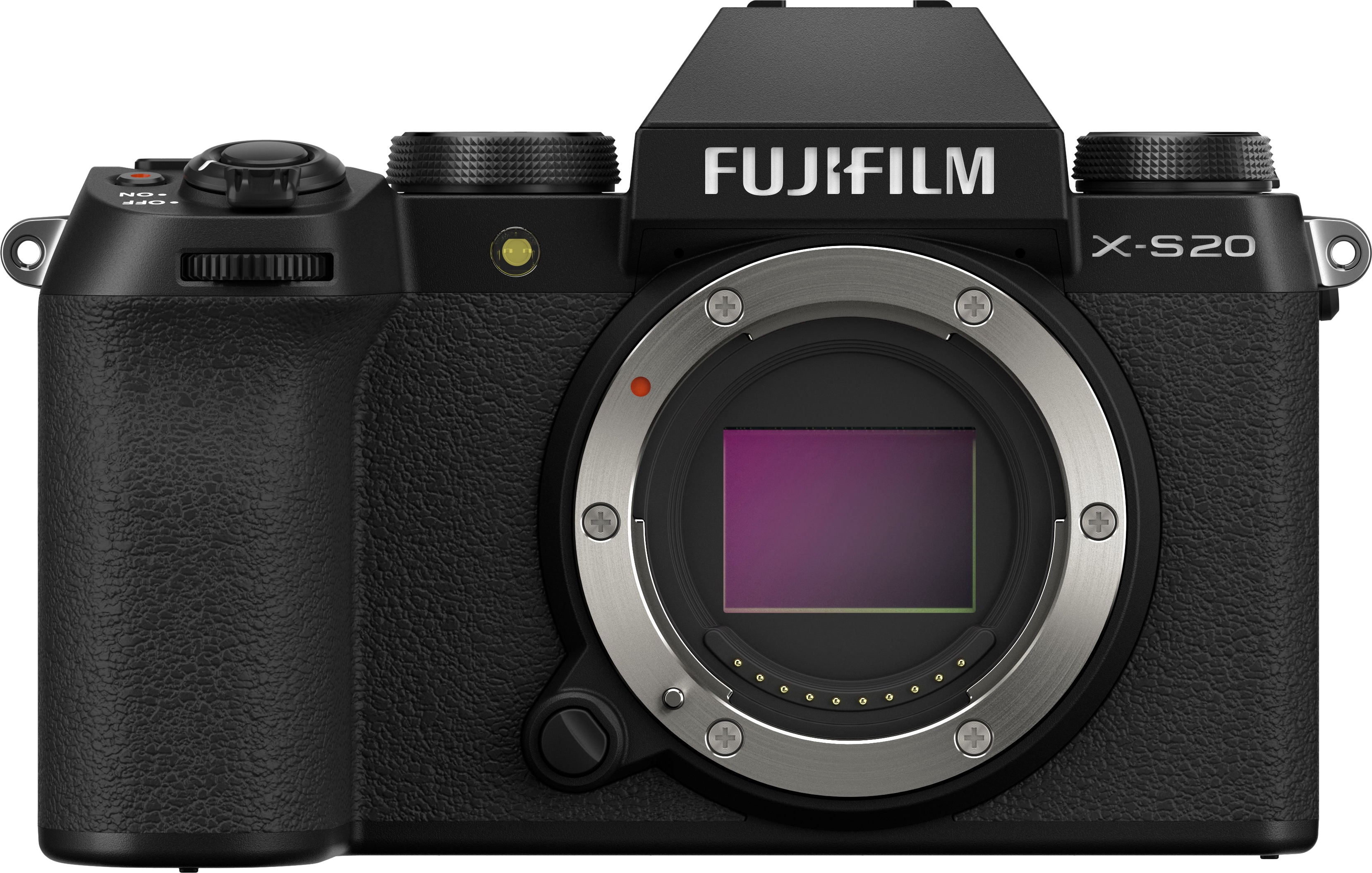
The Fujifilm X-S20 suits photographers who would rather choose a look in the camera than edit every photo on the phone. Film Simulations give you different color and black-and-white treatments for JPEGs. The viewfinder, articulated screen, and in-body stabilization make it a useful everyday camera as well as a sharing tool.
XApp supports automatic transfer orders, remote live-view shooting, and transfers while the camera is off when the relevant settings are enabled. You can resize photos for sharing or retain larger files. RAW transfer is supported too: X-S20 firmware version 2.01 added it, alongside XApp 2.1.0 or later. Keep both camera firmware and the app current; this is a meaningful change from older JPEG-only advice.
There is a catch for video users. The X-S20's ability to record a demanding movie format does not mean your phone can import and play every such file. Choose a recording format supported by the app and phone rather than buying the X-S20 on the assumption that its highest-resolution mode is a phone-ready delivery format.
Compared with the Sony a6700, the Fujifilm's appeal is getting the still-photo look closer to finished before transfer. Choose Sony for its explicit original-versus-proxy video choices. Choose the X-S20 if JPEG color, RAW flexibility, and a stabilized stills camera matter more than a dedicated phone-video workflow.
Panasonic Lumix S9
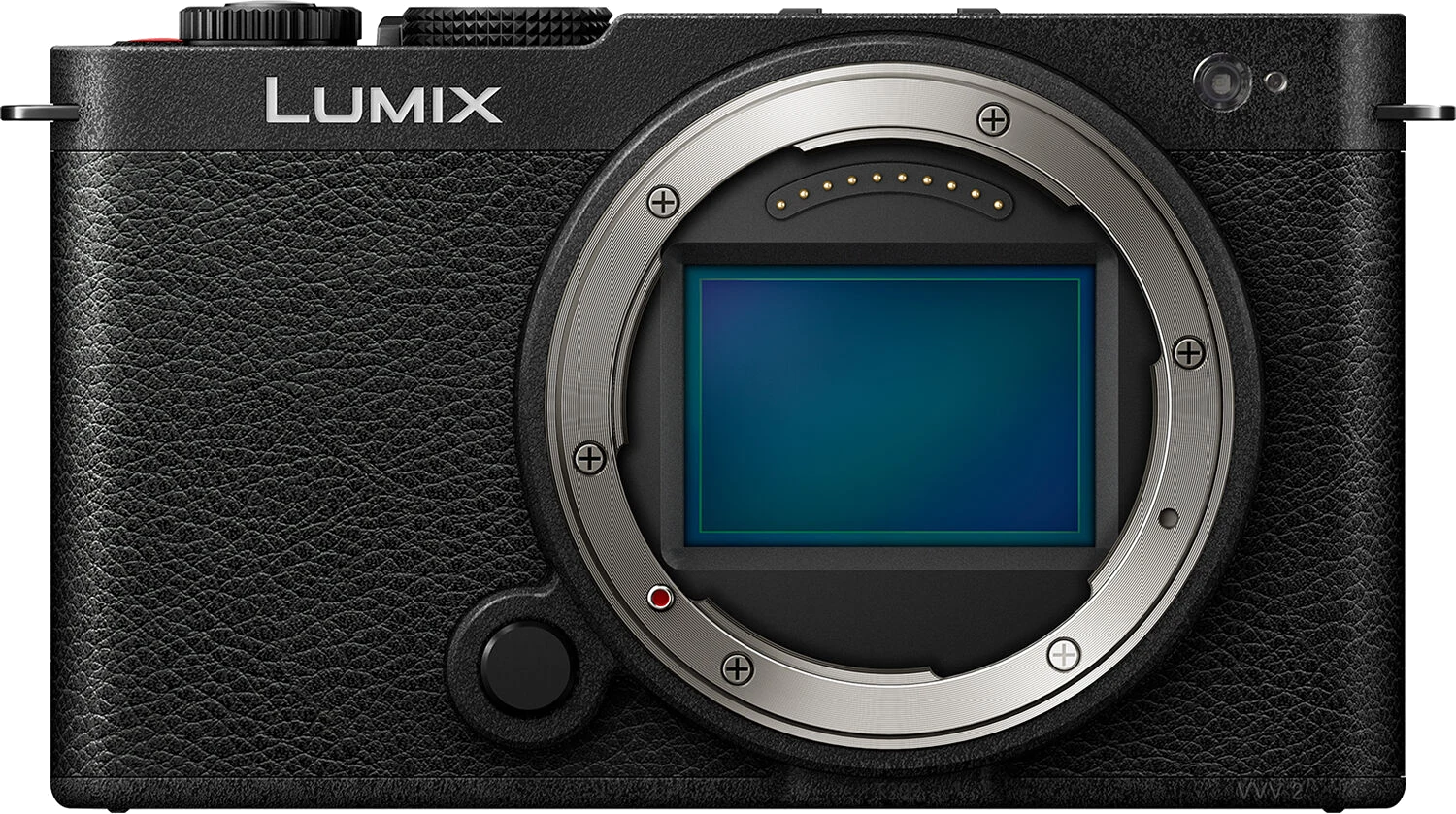
- Phone App
- LUMIX Lab
- Automatic Copy
- Photos + MP4 Lite
- RAW Transfer
- RW2 import supported
- Sensor
- Full Frame
Strengths
- Automatic MP4 Lite video transfer
- Photo and video editing in LUMIX Lab
- Downloadable in-camera LUT looks
- Full-frame sensor
Trade-Offs
- No built-in viewfinder
- No MOV, ProRes, or files over 4 GB in Lab
The Panasonic Lumix S9 is our pick when the phone is where you finish and share video. LUMIX Lab combines transfer with editing, and the S9 can use downloadable LUTs: preset looks that change the color of photos or movies in the camera.
Its most relevant feature is MP4 Lite. The app can automatically transfer this video format over Wi-Fi, alongside supported photos, instead of making every clip a separate selection. Choose that recording format before shooting; automatic transfer does not cover every movie format the S9 records.
LUMIX Lab does not import MOV or ProRes files, or files larger than 4 GB. During an automatic transfer, you cannot perform other camera operations. Keep the app and S9 firmware current for the supported transfer and remote-recording features. The app also provides live-view remote control, including exposure settings, for compatible recording modes.
The camera has a full-frame sensor but no built-in viewfinder. You compose on its rear screen, and the lens still affects how small the complete kit feels. The Sony a6700 is the better fit if you want a viewfinder and explicit proxy-versus-original transfers. Pick the S9 for a planned shoot-to-phone video workflow with an in-camera look.
OM SYSTEM Tough TG-7
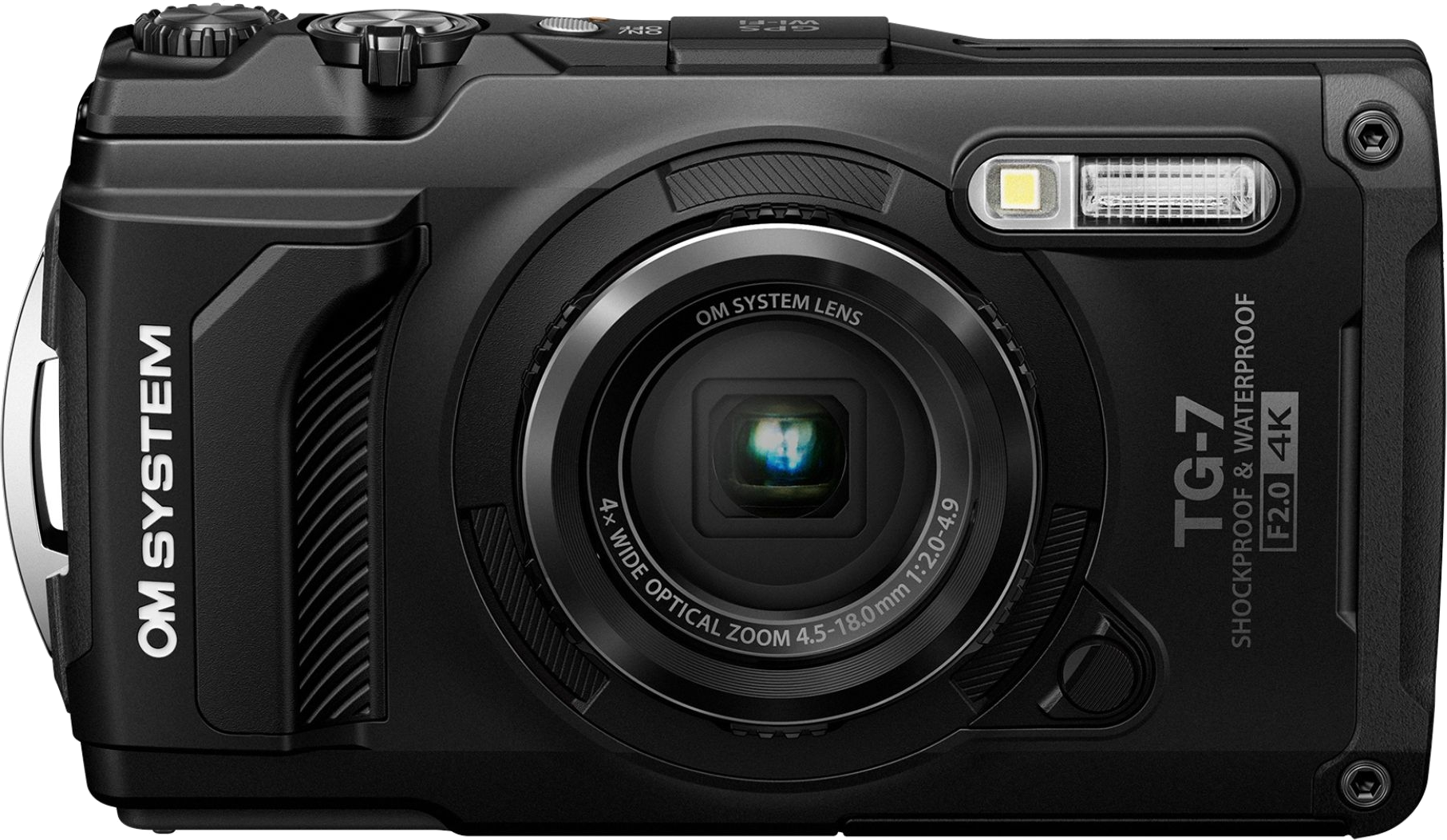
- Phone App
- OI.Share
- Automatic Copy
- Preselect, then import
- RAW Transfer
- Manual import; no Share Order
- Sensor
- 1/2.3-inch type
Strengths
- Waterproof body for wet trips
- Built-in zoom, no separate lens needed
- Manual RAW photo imports
- Live view or separate remote shutter
Trade-Offs
- Small sensor limits photographic flexibility
- Share Order excludes RAW files
The OM SYSTEM Tough TG-7 is the practical choice for wet days, beaches, and trips where you want a compact camera with a built-in zoom. Its waterproof body is rated to 49 feet. Unlike the interchangeable-lens cameras above, it does not require a separate lens purchase to get started.
OI.Share lets you select and import photos over Wi-Fi. You can mark JPEGs in the camera with Share Order to make that selection easier later. Treat this as preselection followed by import, rather than a promise that every shot will arrive in the background. The app supports manual RAW-file transfer from the TG-7, but RAW files are excluded from the camera's Share Order function.
Remote live view and remote shutter are separate choices. Live view lets you frame from the phone; remote shutter lets the camera retain its normal controls while the phone fires it. Video transfer has another limit: OI.Share cannot import AVI files, including some high-speed and time-lapse output. Do not assume a clip is transferable merely because it plays on the camera.
The small 1/2.3-inch sensor is the compromise. Choose the Canon EOS R50 for a larger sensor and interchangeable lenses when photographic flexibility matters more than waterproofing. Choose the TG-7 when taking a small, self-contained camera into rough conditions is what makes the photograph possible. Its waterproof rating does not promise an underwater Wi-Fi connection.
Will These Cameras Work Away from Home?
A direct Wi-Fi connection between camera and phone does not require home internet or a router. Bluetooth pairing helps the devices find each other, but it does not mean full-resolution photos and movies travel over Bluetooth. Posting to a social account or a cloud service is a separate phone or camera service with its own connection and account requirements. None of these Wi-Fi labels alone promises livestreaming.
Check the manufacturer's app listing against your exact phone and OS before buying, especially if you keep an older phone. If RAW editing is the reason you want wireless transfer, also check that your editing app can open that camera's RAW files. Importing a file does not prove you can edit it. For a large batch of originals, a compatible card reader is a useful alternative to an app session; match it to the memory card and the phone's connector.
Our Verdict
The Nikon Z50 II is the starting point for routine photo sharing. The Canon EOS R50 suits a first interchangeable-lens camera, while the Sony a6700 gives you more deliberate control over originals and video proxies. Choose the workflow you will use most often, then compare the camera and lens needed for the photographs you want to take.
Our Three Top Picks Side by Side
- Video
- 91
- Optics
- 65
- Storage & Battery
- 27
- Features
- 86 (highest)
- Video
- 91
- Optics
- 66
- Storage & Battery
- 35
- Features
- 72
- Video
- 91
- Optics
- 73 (highest)
- Storage & Battery
- 43 (highest)
- Features
- 83